
Free AI Tools
Browse tool categories

Amazon Product Background Remover: White or Transparent PNG

Remove a product photo background, choose transparent or white PNG, then check the final image before upload. No login required.

  • Free to use
  • Common types
  • Flexible output
  • Measured result

Amazon Product Image Workspace

One image at a time.

Upload a product image

Choose a file, drop it here, or paste it from your clipboard.

JPG, PNG, or WebP · maximum 15MB · up to 8,000 px per side

The first result can take longer while AI prepares. Keep this tab open while it runs.

This workspace removes the background from one image in your browser. It does not crop, resize, check product fill, validate an Amazon listing image, or export JPG.

Remove a background, then make the next decision

The workspace processes one product image at a time. Choose transparent PNG for another layout or white PNG for a main-image review, then check the image details this tool cannot measure.

  1. Step 1

    Upload one product image

    Choose, drop, or paste one JPG, PNG, or WebP image. The workspace shows the original filename, dimensions, and file size before you run background removal.

  2. Step 2

    Choose the result for the next task

    Run the automatic removal, then keep Transparent for further editing or select White for a pure-white PNG review. Keep the tab open while the browser prepares the first result.

  3. Step 3

    Use the pre-upload checklist

    Check thin edges, reflections, shadows, the full product, frame fill, dimensions, and current Seller Central requirements before using the image in a listing. Use Image Resizer separately when dimensions or crop need work.

Choose the next step after background removal

The background is gone, but the next action depends on where the image is going. Make a white background choice or transparent background choice, then use the download step for the PNG you reviewed. A downloaded file is not an automatic listing approval.

White PNG: review a possible main image

Choose White to place the cutout on a #ffffff background in the downloaded PNG. This is useful for a main-image review, but still check framing, dimensions, and your current category rules before upload.

Choose White in the workspace
Transparent PNG: continue editing

Choose Transparent when you need a reusable product cutout for another layout, design, or background. A transparent PNG is not automatically the finished main image for every destination.

Choose Transparent in the workspace

JPG: convert only after review

This workspace downloads PNG. If a later workflow needs a solid-background JPG, review the edges and chosen background first, then convert the finished PNG.

Convert a PNG to JPG

Inspect edges before you download

Automatic results depend on the source image. Use the original and result as a before/after preview, then review sharp product edges before reuse. Upload a JPG, PNG, or WebP source image and inspect fine parts, reflections, transparent material, or soft shadows.

Inspect thin parts and small details

Look at handles, wires, straps, labels, holes, gaps, and narrow boundaries. If background fragments remain or product detail is missing, try a clearer source image.

Review reflections, glass, and shadows

Glossy, reflective, transparent, and soft-edged products can need closer review. A plain, high-contrast source often gives automatic removal a clearer boundary to work with.

Use a focused editor for exact corrections

This tool has no manual mask brush or object eraser. If a critical edge, reflection, or shadow needs exact adjustment, try a clearer source image or finish the correction in your preferred image editor before publishing.

Use this Amazon main-image pre-upload checklist

For US main images, Amazon guidance commonly calls for a pure white RGB 255,255,255 background, product fill of about 85% or more, image resolution of at least 1,000 pixels on the longest side for zoom, and no props or text. Categories and marketplaces can vary, so use these as checks to verify rather than an approval promise.

1. Confirm a pure white background

For a white-result path, select White rather than assuming a light source background is pure white. Inspect the downloaded PNG for a #ffffff background, especially when the source had shadows or a near-white backdrop.

2. Check product fill and dimensions

Review whether the product fills about 85% or more of the frame and whether the longest side is at least 1,000 pixels. This tool does not resize, center, crop, or measure product fill, so use Image Resizer after removal when needed.

Resize the finished product image

3. Check only the product is visible

Review the actual item, the full product boundary, and anything that remains in the image. Remove or replace images with unwanted props, text, graphics, watermarks, or other content before publishing.

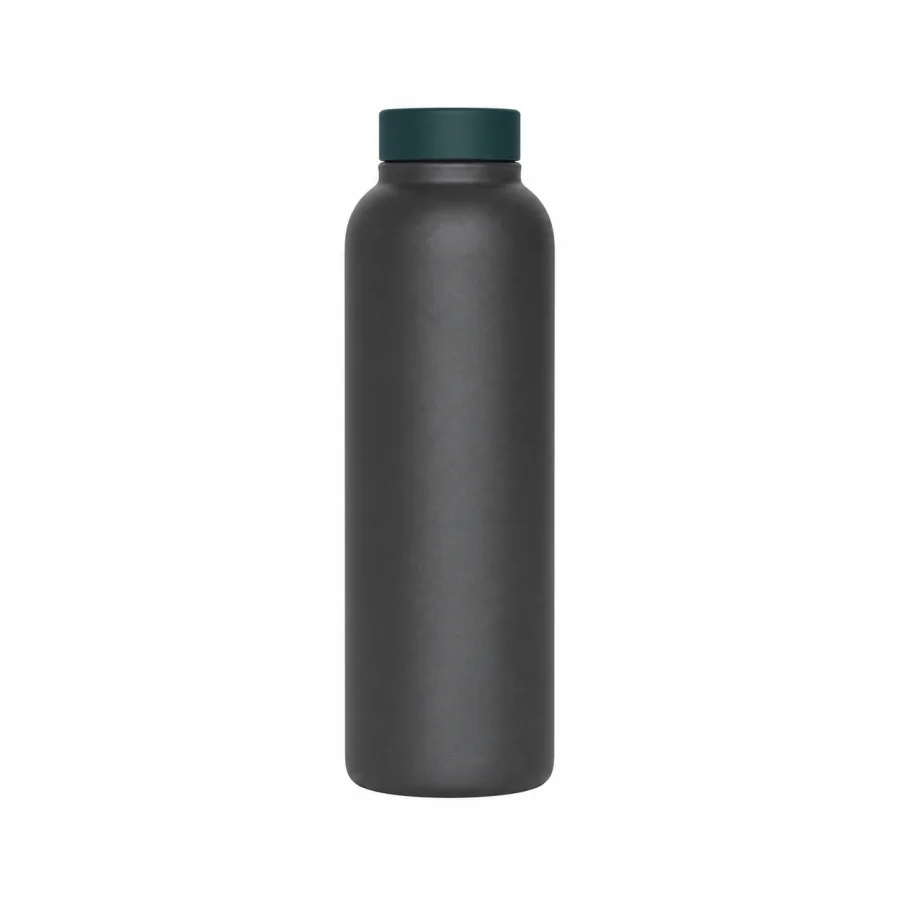
Illustrative unbranded bottle centered on a pure-white square background with clear margin around the full product.

Amazon Product Image FAQ

Direct answers about image formats, transparent output, edge quality, and what this tool does not process.

Can I use this Amazon Product Background Remover for a main image?

It can create a transparent or white PNG starting point from one product photo. Before publishing, review the cutout and check the current Seller Central requirements for your marketplace and category. This tool does not validate a listing image or guarantee approval.

Does Amazon require a white background for the main product image?

Accessible Amazon Seller Central guidance describes a pure white RGB 255,255,255 background for main images, along with framing, size, and content rules. Requirements can change by marketplace or category, so confirm the current rules in Seller Central before you publish.

Can I download a transparent PNG product image?

Yes. Keep Transparent selected after background removal to download a PNG with transparent pixels. It is useful as a reusable product cutout, but your destination may require a solid background instead.

Does my product image leave my browser?

The workspace processes the selected image in your browser session. It may download AI model resources when needed to run, but this page does not send your source image to a separate processing service. Keep the tab open until the result is ready.

Does this tool resize, center, or crop the Amazon image?

No. This tool removes the background and exports PNG. It does not resize, center, crop, or measure product fill. Use the Image Resizer after you review the cutout if you need different dimensions.

Which product image files can I upload?

Use one JPG/JPEG, PNG, or WebP still image at a time, up to 15MB and 8,000 pixels on either side. The workspace does not accept video, animated GIFs, URL input, or HEIC files.

Can I process a product catalog in a batch?

No. This version processes one still image at a time and does not include batch upload, batch download, or an API.

Is this Amazon Product Background Remover free and account-free?

Yes. You can use the tool online and download the PNG result without registration or login.

Ready to review your product image?

Add a product photo, review the cutout, choose a white or transparent PNG, then use the main-image checklist before upload.

Start an Amazon product image

Related image tools

After background removal, check dimensions, review the white PNG, or convert a reviewed solid-background image to JPG when your listing workflow calls for it.

Browse image tools