Editing and Design Workflows
When you plan to edit and save an image repeatedly, keep a PNG working copy to avoid another lossy JPEG save. This protects the current pixels, but it cannot restore detail already lost.

AI tools & browser utilities · No login
Convert JPG or JPEG images to PNG while keeping the original dimensions. Compare the output details and download the locally processed file with no login required.
One JPG/JPEG at a time · processed locally
Drop a JPG/JPEG here or copy one to your clipboard and paste it on this page.
Processed in this browser · no login
Choose one JPG, create a PNG in this browser, then inspect the actual output before saving it.
Select one supported JPG/JPEG file, or drop or paste it into the workspace. The source name, bytes, and dimensions appear before conversion.
The browser decodes the image and exports a PNG at the source width and height. The conversion does not sharpen or upscale the JPG.
Check the PNG preview, dimensions, format, and measured file size before saving the result for your next workflow.
Convert because the next workflow needs PNG, not because PNG is always smaller or sharper. Match the format to the job you need to finish.
When you plan to edit and save an image repeatedly, keep a PNG working copy to avoid another lossy JPEG save. This protects the current pixels, but it cannot restore detail already lost.
A PNG copy can fit workflows that need crisp edges, text-heavy graphics, or a required PNG upload. Existing JPEG artifacts remain in the decoded pixels.
If the goal is compact photo sharing and PNG is not required, keep JPG or evaluate WebP instead. Converting only changes the format and may increase the file size.
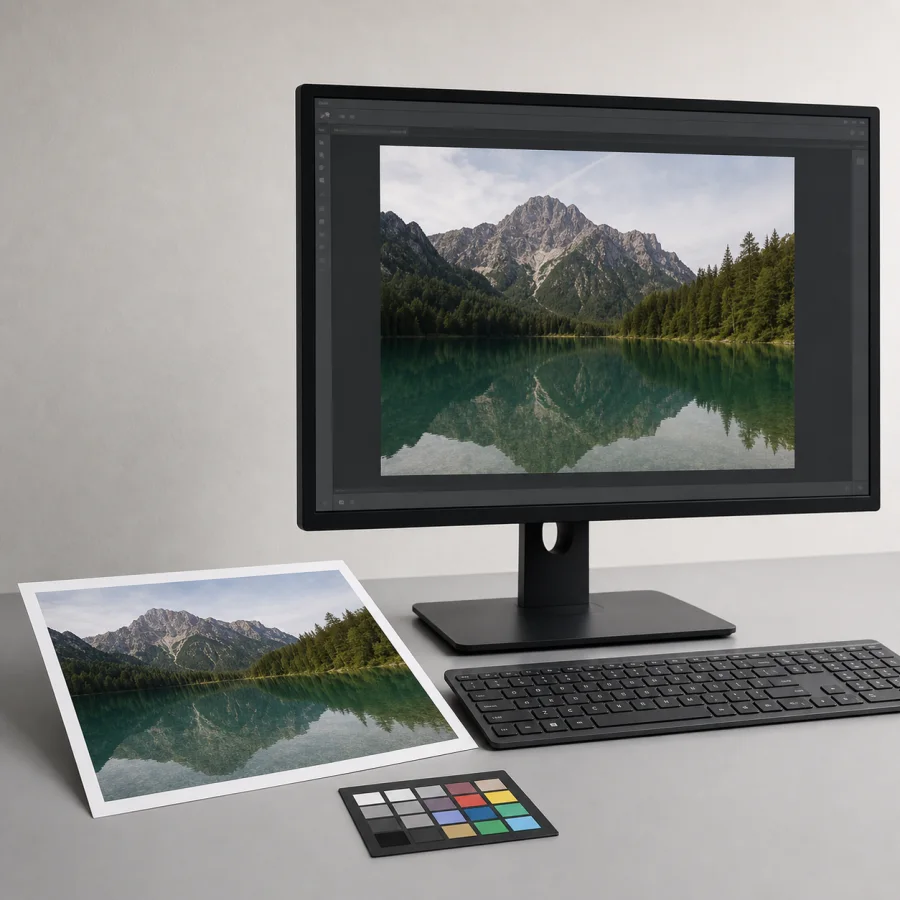
A PNG output avoids another lossy encoding step, but it does not repair the source JPG. Use the measured result to decide whether the new file fits your next step.
Blocks, ringing, blur, or missing texture that were already present in the JPG remain in the PNG. Use an enhancement or upscaling tool when the task is image repair, not format conversion.
PNG stores pixel data without the same lossy compression used by JPG, so a photo can produce a larger file. The actual result bytes vary with image content and source encoding.
Review the original and output format, dimensions, and byte counts in the result state. Do not infer the final size from the extension alone.
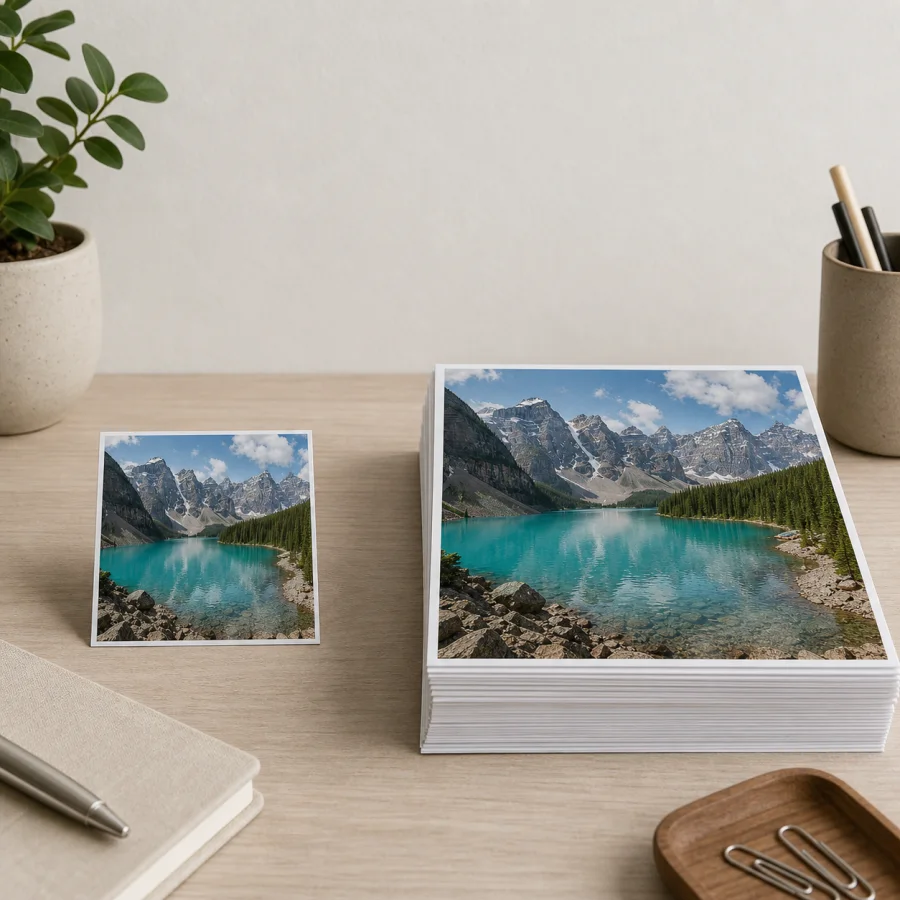
The conversion creates a new PNG from the JPG pixels. Knowing what it does not add or preserve prevents surprises after saving the result.
PNG supports transparency, but a JPG source has no alpha channel to preserve. Its solid background stays in the output; use background removal when you need transparent areas.
Canvas export creates a new file, so the source JPG's EXIF, GPS, and camera fields are not guaranteed to carry over. Check metadata separately before public sharing.
This page handles one JPG/JPEG at a time and rejects images over 12,000 pixels in either dimension. Very large images can still be limited by available browser memory.
Resize, compress, or convert the image again after checking the PNG output.
Resize the PNG
Resize JPG, PNG, and WebP images by exact pixels or percentage. Keep the aspect ratio, choose the output format, compare dimensions and file size, and download the locally processed result without logging in.
Compress the PNG output
Reduce JPG, PNG, or WebP file size by quality or target KB. Compare the original and compressed result, then download the smaller file locally with no login or upload.
Convert PNG to JPG
Convert PNG images to JPG in your browser, choose the JPG quality and background for transparent pixels, compare the result, and download it without signing in.
Convert WebP to PNG
Convert WebP to PNG when you need transparency or wider editing compatibility. Preserve the image dimensions, compare the output, and download the PNG without uploading or signing in.
Straight answers about quality, file size, transparency, privacy, metadata, and supported files.
Yes. You can use this JPG to PNG converter without creating an account or signing in. It processes one JPG or JPEG at a time in your browser.
No. Converting to PNG cannot restore detail that JPEG compression already removed. It creates a PNG copy so later edits and saves do not add another JPEG compression step.
No. A JPG does not contain an alpha channel, so its solid background remains solid after conversion. Use a background-removal tool when you need actual transparent areas.
PNG uses lossless pixel encoding, while JPG uses lossy compression to keep photos smaller. The output can be larger, so compare the actual byte counts shown after conversion.
Yes. This converter exports the decoded image at its source width and height, and the result area shows both the original and output dimensions.
The tool decodes and exports the selected image in this browser rather than sending the source file to a conversion service. Browser memory can still limit very large images.
Yes. Choose a supported JPG or JPEG file in a modern browser, convert it, review the PNG result, and save it without installing another application.
The converter creates a new PNG from the decoded canvas image and does not guarantee that the source JPG's EXIF, GPS, or camera fields will be preserved. Verify metadata separately before sharing or archiving.
This page processes one JPG or JPEG at a time. For several files, repeat the conversion so each result can be reviewed individually.