Confirm the target status
At or under 100 KB means the measured output meets the selected maximum. Closest result means you should adjust the format or maximum width and process again.

AI tools & browser utilities · No login
Set a 100KB maximum for one JPG, PNG, or WebP image. The tool searches for the highest practical quality, reduces dimensions only when needed, and shows the measured result before download. Free to use with no login.
One image at a time · processed locally
JPG does not support transparency, so transparent pixels are filled with a solid background.
Uses the highest practical quality at or under the target. Dimensions may be reduced if quality alone is not enough.
Keeps the original width unless you enter a smaller value. The tool never enlarges the image.
Your image stays in this browser
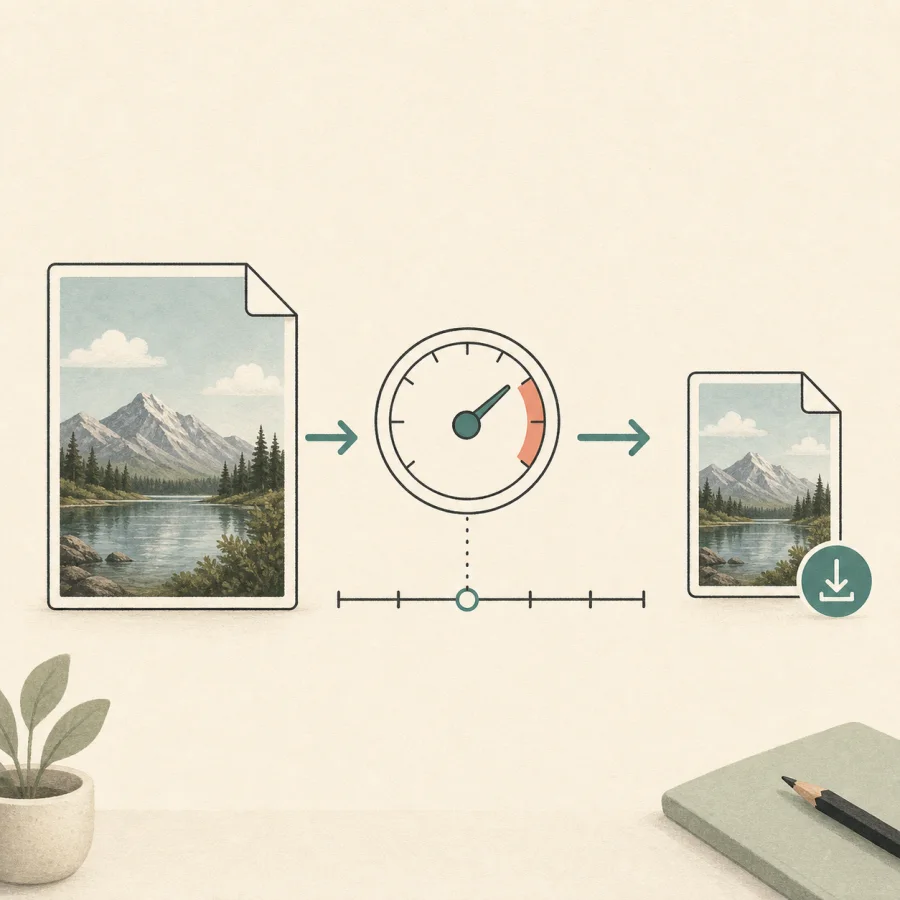
A direct path from an oversized source file to a measured result you can inspect before download.
Drop or choose one JPG, PNG, or WebP file and confirm its original dimensions and file size.
Choose Target KB and select 100. Use JPG or WebP output when the file-size limit is the main requirement.
Review the output bytes, dimensions, format, quality, savings, target status, and preview before downloading.
Start with the receiving form's maximum, then verify its pixel and format rules against the measured download.
Use the measured result, not a generic compression promise, to decide whether the downloaded image meets your next upload step.
At or under 100 KB means the measured output meets the selected maximum. Closest result means you should adjust the format or maximum width and process again.
Review both file sizes, pixel dimensions, output format, and the actual encoding quality. These values show whether the reduction came from encoding, format, dimensions, or a combination.
Zoom in on faces, small text, sharp edges, gradients, and transparent areas. If the result is not usable, try a different format or a less restrictive target before submitting it.
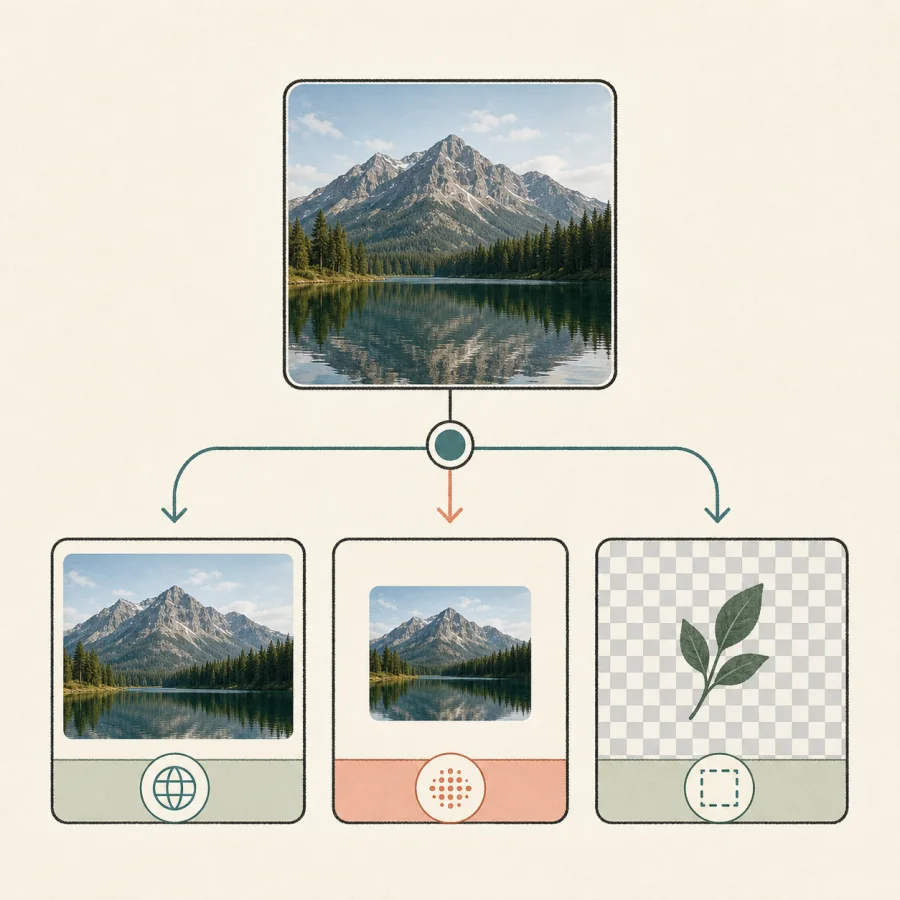
The format affects compatibility, transparency, quality controls, and how easily an image can meet a size limit.
JPG is a practical default for photo upload forms and supports the target-quality search. It does not preserve transparency, so transparent pixels are filled with white.
WebP can preserve transparency and may be a useful web output choice. Confirm that the receiving form, app, or website accepts it before using the download.
PNG output is lossless in this tool, so the target-KB quality search is not available for PNG. An optimized PNG may remain larger.
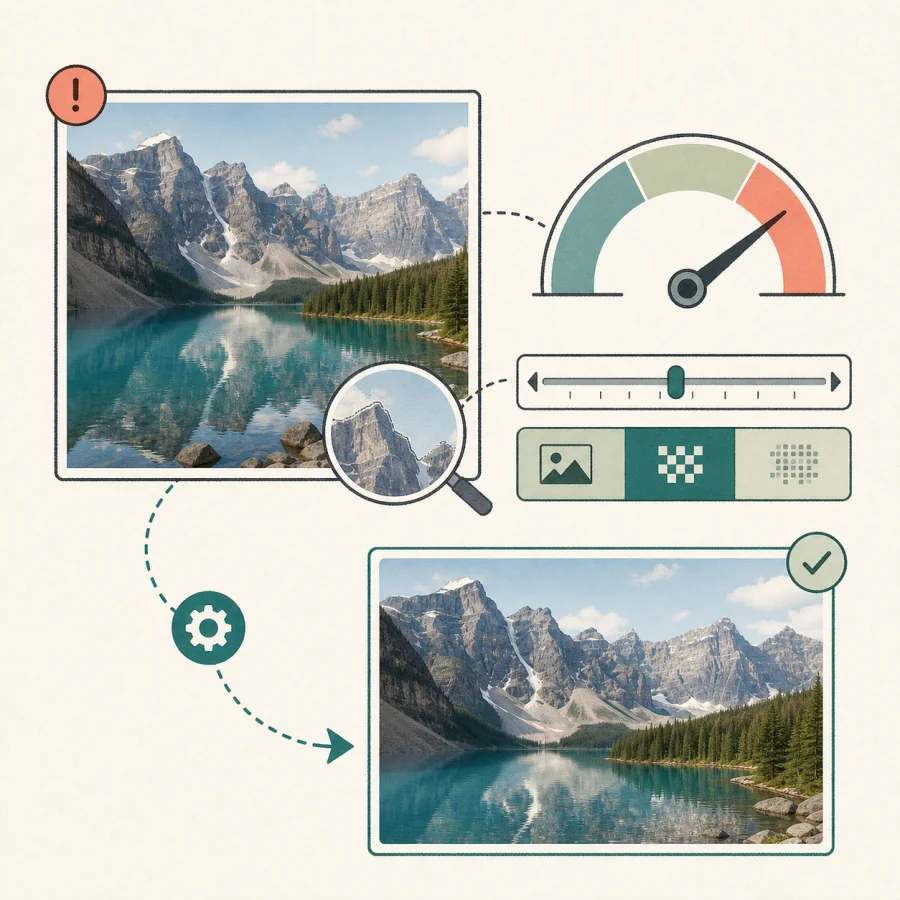
A successful target-size workflow includes a truthful result state when the source cannot reach the requested limit cleanly.
The tool reports a closest result when the target cannot be reached through its practical quality and dimension range.
Try WebP, a lower quality, or a smaller maximum width. Re-encoding an already optimized source can add bytes.
The target is expressed as at or under a maximum. Image encoders produce variable byte sizes, so exact equality is not promised.
Resize exact dimensions or convert the result to another supported format.
General Image Compressor
Reduce JPG, PNG, or WebP file size by quality or target KB. Compare the original and compressed result, then download the smaller file locally with no login or upload.
Resize by pixels
Resize JPG, PNG, and WebP images by exact pixels or percentage. Keep the aspect ratio, choose the output format, compare dimensions and file size, and download the locally processed result without logging in.
PNG to JPG
Convert PNG images to JPG in your browser, choose the JPG quality and background for transparent pixels, compare the result, and download it without signing in.
WebP to PNG
Convert WebP to PNG when you need transparency or wider editing compatibility. Preserve the image dimensions, compare the output, and download the PNG without uploading or signing in.
Direct answers about the 100KB maximum, image quality, formats, privacy, and portal checks.
Choose a JPG, PNG, or WebP image, switch the compressor to Target KB, select 100, and process it. The tool aims for an output at or under 100KB and shows the measured result before download.
No. The target mode aims for a maximum of 100KB, not a byte-perfect size. The result can be smaller or, when the limit cannot be reached without extreme changes, the closest practical output.
You can open a PNG, but target mode exports JPG or WebP because a quality setting does not control this tool's lossless PNG output. Choose WebP when transparency must remain, or JPG when broad photo-upload compatibility matters and a white background is acceptable.
The tool accepts JPG/JPEG, PNG, and WebP and can create JPG or WebP in Target KB mode. JPG fills transparent pixels with white; WebP can preserve transparency. Confirm the receiving form accepts the format you choose.
The existing image compressor reads, processes, previews, and exports the selected file in this browser. It does not send the source image to a processing server.
Keep the original unless you need a different format or smaller dimensions. Re-encoding an already optimized file can make it larger or reduce quality without helping the upload requirement.
Some images cannot reach a small target through quality changes alone. The tool may reduce dimensions proportionally, and an already optimized source may still produce a closest result above the target.
JPG and WebP target output are lossy, so some detail can be discarded. Review text edges, faces, gradients, and transparency in the result preview before downloading.
This page verifies the downloaded file size, dimensions, and format; it cannot verify a specific portal's rules. Check the receiving form for minimum and maximum bytes, pixel dimensions, file type, and photo requirements before submitting.