Choose a HEIC or HEIF file
The input accepts HEIC and HEIF file extensions. Unsupported files show an error before processing.

AI tools & browser utilities · No login
Convert HEIC or HEIF photos to JPG for websites, email, and upload forms. Choose JPG quality, check dimensions and file size, then download the JPEG without logging in.
One photo at a time · browser conversion
No registration or login required
Choose a HEIC photo to begin
The converted JPG preview and file details will appear here.
A short path from an iPhone or HEIF photo to a checked and downloadable JPG result.
Drop one .heic or .heif photo into the workspace and check the source filename and size.
Choose a JPG quality preset, then start conversion. The output is re-encoded as a compatible JPEG.
Compare the output dimensions, format, and bytes before downloading the converted JPG.
Create a compatible JPG copy for the app, website, or upload form you need to use next.
A focused workflow for turning an iPhone or HEIF photo into a JPG you can open, share, or upload.
The input accepts HEIC and HEIF file extensions. Unsupported files show an error before processing.
Use the quality control when the file size matters, and use the result details to confirm the decoded dimensions.
The result panel provides a local download after conversion finishes. Keep the source file until you confirm the result works for its destination.
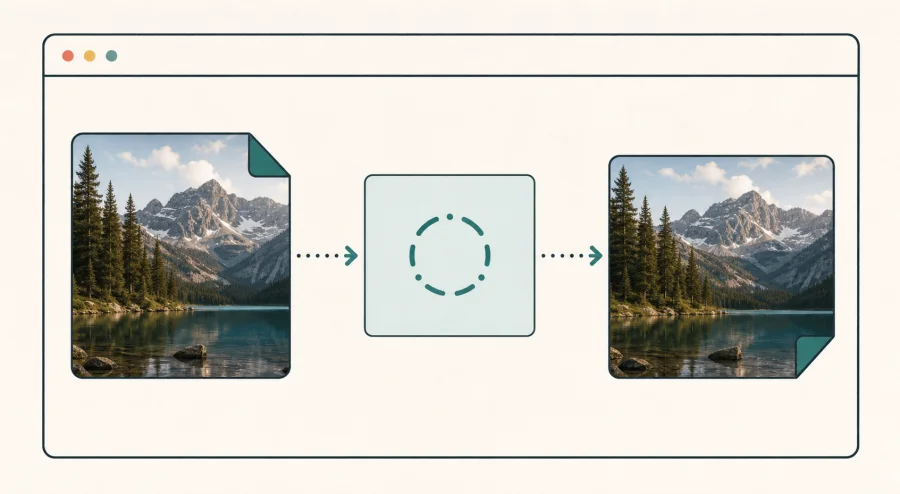
HEIC and JPG do not preserve exactly the same encoding characteristics. Choose the output based on where the image needs to work next.
JPG is a practical choice for websites, email, Windows workflows, and upload forms that do not accept HEIC.
Higher JPG quality usually keeps more visible detail but can create a larger output. Lower quality can reduce bytes with more visible artifacts.
Canvas-based conversion creates a new image. Camera metadata and other embedded fields may not carry over to the downloaded JPG.
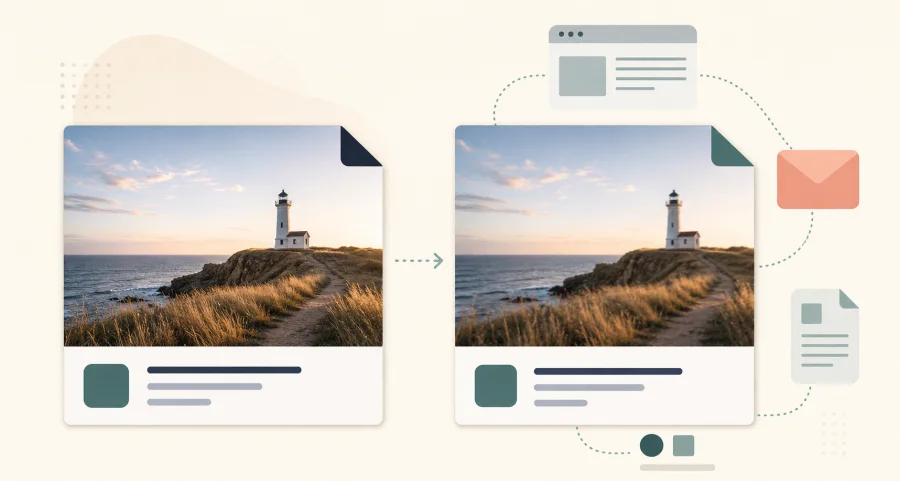
The page states what the browser can process and what the converter does not promise.
The page is built for in-browser decoding and conversion. Check the browser network panel if a sensitive photo requires independent verification.
HEIC support depends on the bundled codec, device memory, and the specific HEIF container. Some multi-image or damaged files may fail.
This version handles one source at a time. Very large images can exceed practical browser memory even when the file extension is supported.
Compress, resize, or convert the JPG after it is ready.
Compress the JPG
Reduce JPG, PNG, or WebP file size by quality or target KB. Compare the original and compressed result, then download the smaller file locally with no login or upload.
Resize the JPG
Resize JPG, PNG, and WebP images by exact pixels or percentage. Keep the aspect ratio, choose the output format, compare dimensions and file size, and download the locally processed result without logging in.
JPG to PNG
Convert JPG or JPEG images to PNG while keeping the original dimensions. Compare the output details and download the locally processed file with no login required.
Compress to 100KB
Set a 100KB maximum for one JPG, PNG, or WebP image. The tool searches for the highest practical quality, reduces dimensions only when needed, and shows the measured result before download. Free to use with no login.
Direct answers about compatibility, JPG quality, metadata, and browser-side conversion.
HEIC is an image container commonly used by iPhone and other devices. JPG is supported by more browsers, apps, upload forms, and operating systems.
This page is designed to decode and convert the selected HEIC file in your browser. Check the visible local-processing note and your browser network panel if the handling of a sensitive file matters.
JPG is a lossy format. The converter uses a quality setting so you can choose a practical balance, but it does not promise pixel-for-pixel or lossless JPG output.
The first version processes one HEIC or HEIF file at a time so the output can be reviewed before download.
The converter keeps the decoded image dimensions unless a browser or codec limitation prevents reading the source. Check the original and output values shown after conversion.
The conversion creates a new JPG through a browser canvas. Source metadata is not guaranteed to be preserved; do not use the result when exact metadata preservation is required.