
Free AI Tools
Browse tool categories

Free AI Product Background Remover: Transparent or White PNGs

Upload one product photo and let AI remove its background. Review the cutout, choose Transparent, White, or a custom-color PNG, then download it—no account required.

Product Background Remover workspace

Upload a product image

Choose a file, drop it here, or paste it from your clipboard.

JPG, PNG, or WebP · maximum 15MB · up to 8,000 px per side

The first result can take longer while AI prepares. Keep this tab open while it runs.

Remove background from product photos in three steps

Upload one supported product photo, let AI remove the background, then inspect the cutout. Output-background controls appear after the automatic result is ready.

  1. 01

    Upload a product image

    Choose photo with the Choose image control, or drop or paste one JPG, PNG, or WebP product image. After selection, the workspace shows source details: filename, dimensions, and file size before you start removal.

  2. 02

    Automatic removal and processing

    Select Remove product background and keep the tab open while processing separates the product from the surrounding scene. The first result can take longer while AI prepares.

  3. 03

    Preview, retry, and download

    Once the preview is ready, inspect the product boundary and choose Transparent, White, or a custom solid background before downloading the measured PNG result. Use a clearer source image if an important edge is wrong.

Choose a transparent, white, or custom background

After automatic removal succeeds, choose the background that best matches the next use for the cutout, then save the PNG after checking the preview. Transparent, White, and custom-color controls create different finished assets.

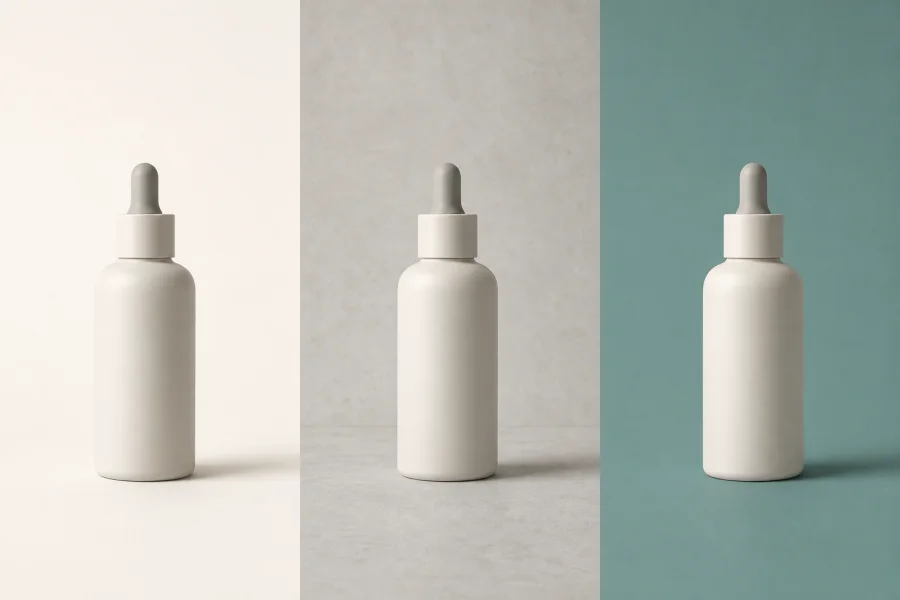
Conceptual three-part product presentation showing an unbranded bottle on white and colored backgrounds for output-choice guidance.
01

Transparent PNG for a product cutout

Choose Transparent when the product needs to sit on different page colors, layouts, banners, or designs. The downloaded PNG keeps transparent pixels for flexible reuse in a listing, catalog, or graphics layout.

After removal, choose Transparent
02

White background PNG for listings

Choose White when you need a clean solid product image. Before you publish, confirm the current background, crop, dimensions, and file requirements for the store, catalog, or service where you will use it.

After removal, choose White
03

Custom color for catalog and graphics use

Choose a custom color when the finished product image needs to match a campaign, presentation, catalog, or graphics layout. The removed area is filled with the selected color in the downloaded PNG.

After removal, choose a custom color

Check product edges before you download

Automatic cutouts can vary with the source image. Review the actual preview before using the PNG, especially when the product includes small parts, reflective surfaces, or subtle shadows. Use a clearer source when the preview loses detail or leaves background fragments; use an image editor when a critical edge must be exact.

Inspect thin edges

Look closely at handles, straps, thin parts, small labels, holes, and product boundaries. If detail is missing or background fragments remain, use a clearer source image before processing again.

Check reflections and shadows

Glossy surfaces, glass, reflective packaging, and soft shadows can need a closer review. If a critical edge must be exact, finish it in an image editor because this tool has no manual mask brush or object eraser.

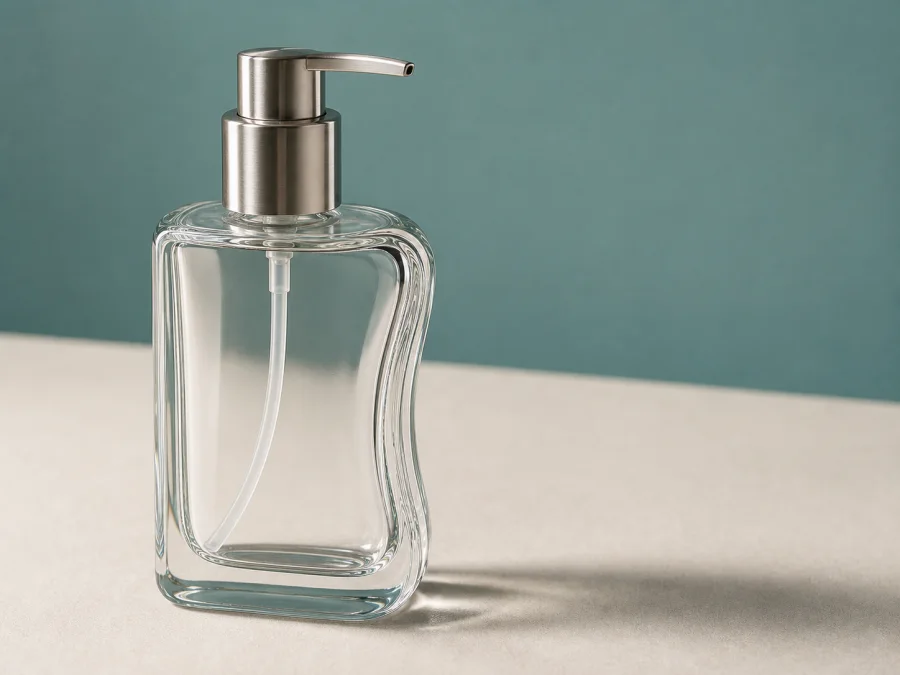
Conceptual close product-photo view showing thin edges, reflective glass, and a soft shadow that merit review before download.

One product image at a time

For a single product image, this browser workflow gives you one result to review and download at a time.

One image per removal

This tool accepts one JPG, PNG, or WebP still image at a time, up to 15MB and 8,000 pixels per side. Upload the next product only after you finish or reset the current result.

No batch processing or API integration

This focused browser tool does not include batch processing or API integration. It also does not include manual masking, object erasing, video, audio, animated GIF, or URL input.

Product background remover FAQ

Answers about white or transparent output, file limits, difficult edges, batch scope, and access.

Can I make a product photo background white?

Yes. After AI removes the background, choose White in the output background controls to place the product on a white PNG background. Check the destination's current image requirements before you publish.

Can I download a transparent PNG product image?

Yes. Keep Transparent selected to download a PNG with transparency. This is useful when the product needs to sit on different layouts or background colors.

Will the tool keep product edges and shadows?

Automatic results can vary with the source image. Inspect handles, fine edges, labels, reflections, transparent gaps, and soft shadows in the preview before you download. If detail is missing or background fragments remain, use a clearer source image. This tool does not include a manual mask brush or object eraser for exact edge fixes.

Can I remove backgrounds from multiple product images at once?

This version processes one still image at a time. It does not include batch processing or a batch download.

Which product image files can I use?

The supported files and formats are one JPG/JPEG, PNG, or WebP still image at a time, up to 15MB and 8,000 pixels per side. These result limits apply to each image.

Is this Product Background Remover free to use?

Yes. You can use this Product Background Remover online and download the PNG result without creating an account or logging in.