Use Pixels for Exact Dimensions
Choose Pixels when a website, form, layout, or content system gives you a specific width and height. Enter either dimension with the ratio locked to calculate the other one automatically.

AI tools & browser utilities · No login
Resize JPG, PNG, and WebP images by exact pixels or percentage. Keep the aspect ratio, choose the output format, compare dimensions and file size, and download the locally processed result without logging in.
One image at a time · processed locally
Your image stays in this browser
Need a smaller file? Use Image Compressor.A short, predictable path from the original file to a checked and downloadable result.
Select a JPG, PNG, or WebP image and confirm its original dimensions and file size.
Choose Pixels or Percentage, set the target size, keep or unlock the aspect ratio, and select an output format.
Generate the result, compare its dimensions, format, and file size with the original, then download it.
Start with the final dimensions or scale you need, then choose the format that fits the destination.
Use the resize mode, ratio control, and output format that match the requirement you already have.
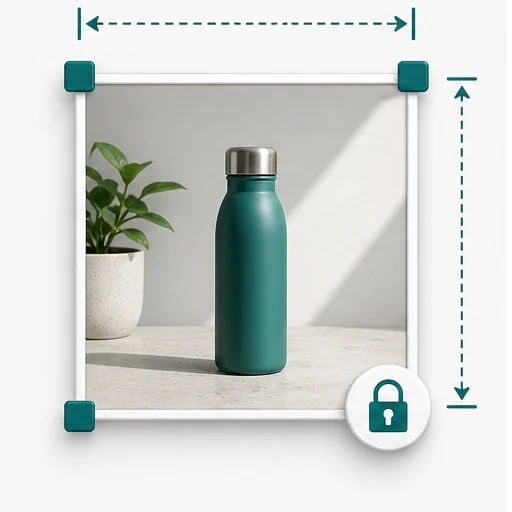
Choose Pixels when a website, form, layout, or content system gives you a specific width and height. Enter either dimension with the ratio locked to calculate the other one automatically.
Choose Percentage when you want a relative change such as half size. Enter any value from 1% to 400%, or use the 25%, 50%, 75%, and 100% shortcuts.
The ratio lock prevents accidental stretching by changing width and height together. Unlock it only when independent dimensions are required and distortion is acceptable.
Use PNG when transparency matters. JPG fills transparent pixels with white. JPG and WebP expose a quality control that trades some detail for a potentially smaller file.
Check what changed before downloading, and use a different image tool when the job is cropping, compression, or detail enhancement.
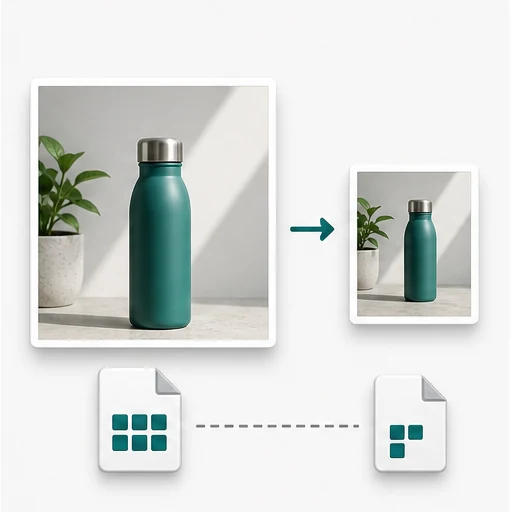
The result summary shows original and output dimensions, file size, and format. File size depends on image content, pixel count, format, and quality, so it may not change in direct proportion to width.
Downscaling removes pixels from the source. Upscaling interpolates existing pixels and can look softer because standard resizing cannot reconstruct detail that was not captured.
Resize changes the full image's pixel grid. Crop removes edge areas. Compression mainly changes encoding and file size. Use Image Compressor when a file-size limit matters more than exact dimensions.
The tool keeps processing local and states its format and browser boundaries so you can decide whether it fits the file you have.
The selected file is decoded with browser APIs, drawn to a local Canvas, and exported to a temporary browser URL. No image file is sent to a processing server.
JPG, PNG, and WebP are supported for both input and output. GIF animation, HEIC, AVIF, BMP, SVG, RAW camera files, and layered project files are not supported here.
This page processes one image at a time and limits each output dimension to 12,000 pixels. Available device memory limits very large files, and enlargement cannot create new image detail.
Continue with another private, browser-based image task.
Compress an Image
Reduce JPG, PNG, or WebP file size by quality or target KB. Compare the original and compressed result, then download the smaller file locally with no login or upload.
Resize a Single Icon
Upload one PNG, JPG, or WebP icon, choose an exact size or percentage, keep its proportions, preview the result, and download a PNG. Free online with no registration or login.
Convert WebP to PNG
Convert WebP to PNG when you need transparency or wider editing compatibility. Preserve the image dimensions, compare the output, and download the PNG without uploading or signing in.
Convert JPG to PNG
Convert JPG or JPEG images to PNG while keeping the original dimensions. Compare the output details and download the locally processed file with no login required.
Direct answers about dimensions, quality, formats, and browser-side privacy.
Choose Pixels, enter the target width and height, and leave the aspect-ratio lock on if you want the other dimension to update proportionally. Select Resize image, review the output dimensions, and download the result.
Yes. Choose Percentage and enter a scale from 1% to 400%, or use the 25%, 50%, 75%, and 100% shortcuts. The output width and height are calculated from the original image.
Reducing dimensions usually preserves the visible result well, but every resampling operation changes pixel data. Enlarging can look softer because ordinary resizing cannot recreate detail that is missing from the source image.
No. The selected image is decoded, resized, previewed, and exported in your browser. The tool does not send the image file to a processing server.
Resizing changes the pixel dimensions of the full image. Cropping removes part of the image. This tool resizes the full image and does not provide a crop selection.
You can open and export JPG, PNG, and WebP images. PNG can preserve transparency. JPG does not support transparency, so transparent pixels are filled with white when JPG is selected.