Use a Logo Image With Clear Edges
A sharp logo that contrasts with its background is easier to review. Small marks, faint outlines, and colors close to the background deserve an extra look in the result preview.

AI tools & browser utilities · No login
Remove the background from a JPG, PNG, or WebP logo in a few clicks. Review the AI cutout, keep it transparent or choose a solid color, then download a PNG—100% free, no login required.
One image at a time.
Choose a file, drop it here, or paste it from your clipboard.
JPG, PNG, or WebP · maximum 15MB · up to 8,000 px per side
Use this free logo background remover in three direct steps: add a supported logo image, let AI create a cutout, then inspect the edges and download a transparent PNG.
Choose, drop, or paste one JPG, PNG, or WebP logo. Check the filename, dimensions, and file size before you start.
Select Remove background and keep the tab open while AI separates the logo from its surrounding background.
Inspect letters, thin strokes, and pale edges. Choose transparent, white, or a custom solid background, then download the measured PNG result.
A transparent logo can be placed on websites, slides, brand templates, product mockups, and print layouts without a visible box behind it. Start with one clear logo image, then review the automatic cutout before you save it.
A sharp logo that contrasts with its background is easier to review. Small marks, faint outlines, and colors close to the background deserve an extra look in the result preview.
Choose Transparent when the logo needs to sit on different page colors, presentations, apparel mockups, or other layouts. The download stays in PNG format.
Choose a white or custom solid output when a destination requires a fixed background. The tool fills removed areas with the color you select and still downloads a PNG.
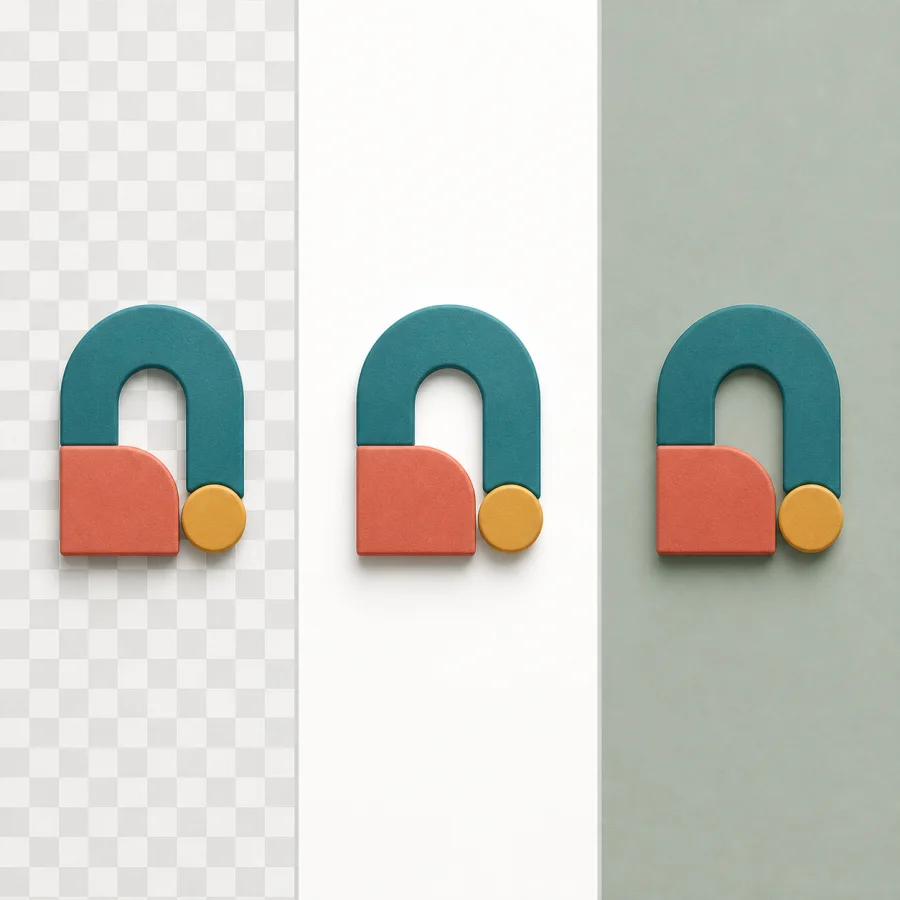
A white background can look simple, but light lettering, soft edges, and anti-aliasing can make the boundary harder to judge. Use the preview to decide whether the transparent result is ready for your next layout.
After you remove a white background from a logo, inspect white or pale parts of the design, fine borders, and small text before downloading. If light logo marks blend into the removed area, test the transparent PNG over a darker page color.
Fine strokes can need a closer review than a bold symbol. Use the real preview, dimensions, and file size shown in the result instead of relying on a generic quality label.
This tool creates an automatic result and does not include a mask brush. If a critical edge is imperfect, retry with a clearer source or finish the edge in an image editor.


Remove a logo background once, then reuse the transparent PNG where a fixed white rectangle would interrupt the design. Check each destination's own file and size requirements before publishing.
Place a transparent logo over a page color, banner, thumbnail, or social design without rebuilding the background around it.
Add the logo to slides, proposals, document covers, and reusable templates while preserving the surrounding layout color.
Prepare a transparent logo for a mockup or print layout, then verify the printer, marketplace, or production service requirements separately.
Check the file type and task boundary before you begin so the result matches what this focused, automatic tool can actually provide.
Choose one JPG/JPEG, PNG, or WebP still image up to 15MB and 8,000 pixels per side.
Transparent output keeps an alpha channel. White or custom output fills transparent pixels with the selected color and downloads as PNG.
The page does not process batches, video, audio, animated GIFs, or URLs, and it does not include manual masking, object erasing, or Photoshop editing tools.
Resize or compress your finished logo. JPG does not keep transparent pixels, so use it only when the destination needs a solid background.
Resize the Transparent Logo
Upload one PNG, JPG, or WebP logo, set an exact size or percentage, keep its proportions, compare the result, and download a PNG. Free online with no registration or login.
Compress the Finished Logo
Reduce JPG, PNG, or WebP file size by quality or target KB. Compare the original and compressed result, then download the smaller file locally with no login or upload.
Convert a Logo to PNG
Convert JPG or JPEG images to PNG while keeping the original dimensions. Compare the output details and download the locally processed file with no login required.
Change a Logo Color
Upload a PNG, JPG, or WebP logo, choose the existing color to replace, set a new HEX color, then preview and download a PNG. Free online with no registration or login.
Direct answers about image formats, transparent output, edge quality, and what this tool does not process.
Upload one JPG, PNG, or WebP logo, select Remove background, and review the result. Keep Transparent selected to download a transparent PNG, or choose white or a custom color for a solid PNG background.
Upload the logo and let the automatic background remover create a cutout. Review pale areas, thin strokes, and anti-aliased edges before downloading the transparent PNG; this version does not include a manual mask brush.
Very light logo marks can blend into a white or pale background. Inspect the transparent result over a darker page color before using it. If a critical detail is missing, retry with a clearer source image or refine the edge in an image editor.
Yes. You can use this logo background remover and download the PNG result without creating an account.
Yes. Keep Transparent selected to download a PNG with transparency. Choosing white or a custom color fills the transparent area with that solid color in the downloaded PNG.
The tool accepts one JPG/JPEG, PNG, or WebP still image at a time, up to 15MB and 8,000 pixels per side.
Automatic results can vary with the source image. Inspect small type, thin strokes, light edges, and marks that are close to the background before you download. Use an image editor for any manual pixel-level refinement that is still needed.
This page provides an automatic logo cutout and PNG download in the browser. Photoshop can be useful when you need manual selection or pixel-level edge editing; this tool does not include a mask brush or Photoshop integration.
Add a logo, review the automatic cutout, and download a transparent or solid-background PNG you choose.