
Free AI Tools
Browse tool categories

Resize a Logo Online

Upload one PNG, JPG, or WebP logo, set an exact size or percentage, keep its proportions, compare the result, and download a PNG. Free online with no registration or login.

  • Free online
  • No registration
  • No login
  • Local PNG, JPG, and WebP input

Upload and Resize Your Logo

Choose a logo file

Set the logo size

Need a target size? Use the current pixel requirement from your website header, profile image, email signature, or print file instructions.

Target PNG sizeChoose a logo first

Your local logo is processed in this browser tab.

Your logo preview

How to Resize a Logo in 3 Steps

Choose one local logo file, set a meaningful size, keep its proportions, then check the actual PNG before downloading it.

  1. Step 1

    Upload Your Logo File

    Choose, drop, or paste one PNG, JPG, or WebP logo. Confirm the actual original dimensions, format, and file size before you set the output.

  2. Step 2

    Choose Pixels or Percentage and Resize

    Enter the target width and height or a percentage. Keep proportions on unless a different shape is intentional, then select Resize logo.

  3. Step 3

    Check the Result and Download It

    Compare the Original and Resized PNG, verify dimensions and transparent edges, then download the result or start over with another size.

Set the Right Logo Dimensions

Use pixels when the destination gives you an exact requirement. Use a percentage for a proportional change, and check the destination's current guidance before choosing a final size.

Use Exact Pixels for a Required Space

Enter a width and height when a website header, profile image, email signature, or print file instruction specifies the final dimensions. With proportions locked, changing one value calculates the other from the source logo.
Use a Percentage for Proportional Scaling

Choose a percentage for a relative change, such as half size. The workspace calculates output dimensions from the logo you selected instead of showing fictional defaults.

Keep Proportions On to Avoid a Stretched Logo

Leave the proportion lock on for most logos. Unlock it only when independent dimensions are explicitly required and you have checked that visible stretching is acceptable.

How to Resize a PNG Logo Without Losing Transparency

A PNG logo can contain transparent pixels around the mark. Keep PNG as the output when that background matters, and review the result before export.

Keep PNG When the Background Must Stay Transparent

The download from this page is a PNG. PNG can retain transparent pixels from a transparent source image, which is useful when the logo must sit on different backgrounds.

Check the Logo on Light, Dark, and Checkerboard Backgrounds

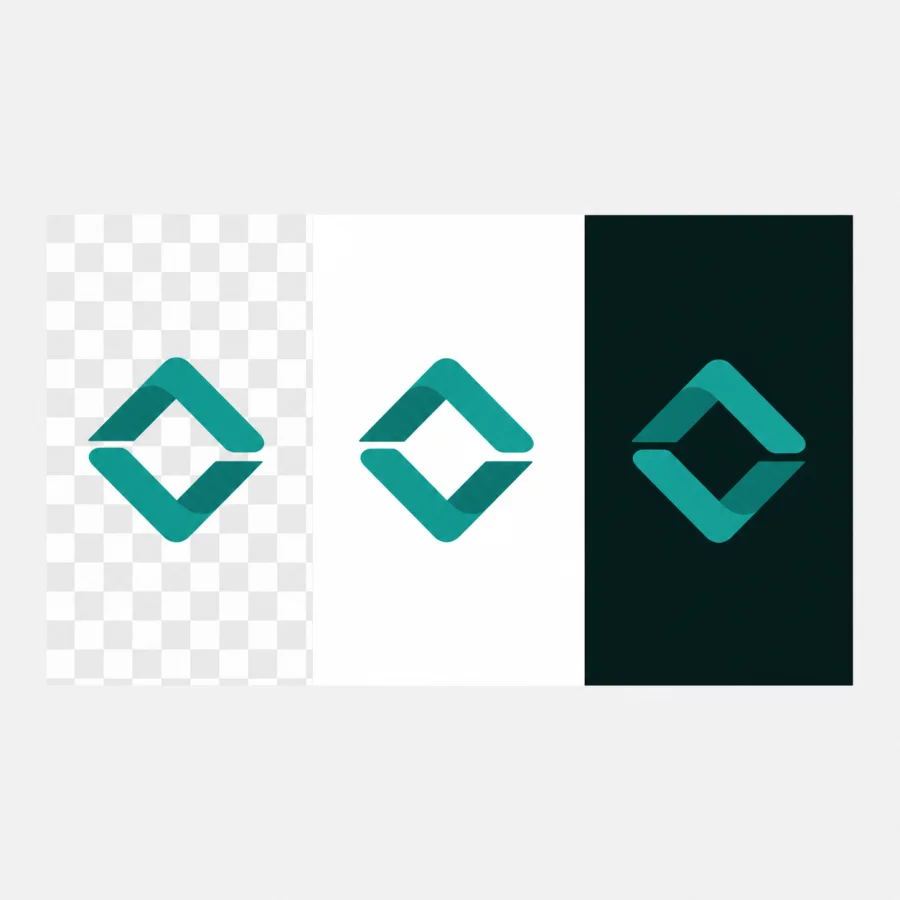
Use the result viewer to inspect the Original and Resized logo on checkerboard, light, and dark surfaces. Thin lines, pale halos, and low-contrast details are easier to spot before download.

Resize Is Not the Same as Removing a Background

Resizing changes the pixel dimensions of the whole file. It does not remove a background or create transparency; use Logo Background Remover when that is the separate task you need.

Abstract teal mark with transparent edges shown on checkerboard, light, and dark backgrounds.

Resize a Logo Without Losing Quality: What to Check

Resizing can preserve a logo well when you start with a suitable source and keep its proportions. It cannot create missing detail when a small raster logo is enlarged.

Downscaling and Upscaling Are Different

Reducing dimensions removes pixels and usually preserves visible structure better than enlarging. Ordinary upscaling interpolates existing pixels and can soften thin lines, curves, or small lettering.

Use the Largest Clean Source You Have

Start from the original high-resolution raster file whenever possible. This browser resizer does not claim to restore detail that was absent in the uploaded logo.

Use Vector Artwork for Scalable Source Files

SVG, AI, and EPS describe vector artwork and are better masters when a logo must scale broadly. This page resizes raster PNG, JPG, and WebP pixels; it does not edit vector files.

Need a Different Logo Change?

Choose the task that matches your requirement: resizing changes the full image canvas; cropping or trimming removes extra space; compression targets file weight; conversion changes the file format.

Resize Changes Dimensions

Use this page when you need a different logo width, height, or percentage while keeping the whole image in view.

Crop or Trim Removes Extra Space

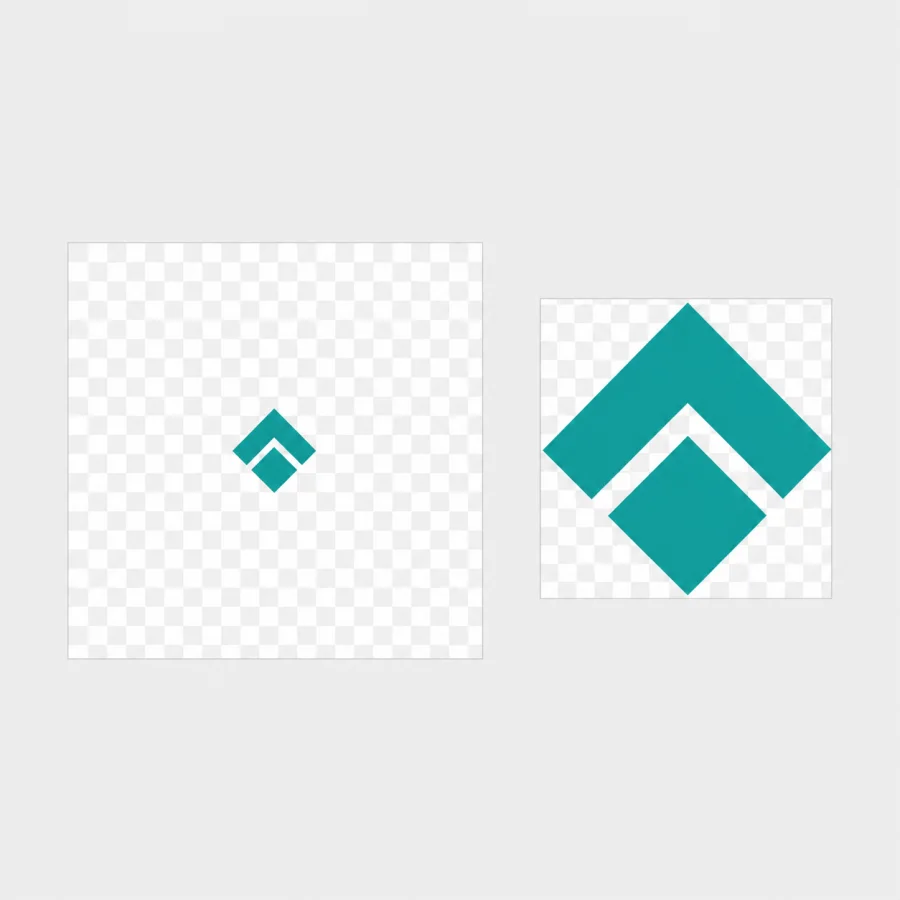
This logo resizer preserves the full image canvas, including extra transparent or white padding. If the logo mark must fill the available space, crop or trim the source in a separate editor first, then resize it here. This page does not crop or automatically center a logo.

Compress Targets a Smaller File Size

Use Image Compressor when a KB or MB upload limit is the main requirement. Compression and resizing can be separate steps because an exact pixel size does not guarantee an exact file size.

Abstract teal mark shown with wide transparent canvas padding and a tightly framed alternative.

Formats, Local Processing, and Limits

Make the supported input formats, PNG output, practical size limits, and processing location visible before you choose a file.

Supported Files and PNG Output

Choose one PNG, JPG, or WebP input file. This tool exports one PNG, which can retain transparent pixels from a transparent source image.

Processed in Your Browser

The selected logo is decoded, resized, previewed, and exported in the current browser tab. No account is required, and the page does not send the source image or result to an external image-processing service.

Practical Limits and Honest Quality Notes

This tool processes one file at a time up to 10 MB and 8,000 pixels on either side. Shrinking removes pixels, while enlarging can look softer because ordinary resizing cannot create missing source detail.

Related Logo and Image Tools

Compress a logo for a file-size limit, resize a small square icon, remove a background, or convert an SVG source for a separate raster workflow.

Browse image tools
IC Image

Compress an Image for a File-Size Limit

Image Compressor

Reduce JPG, PNG, or WebP file size by quality or target KB. Compare the original and compressed result, then download the smaller file locally with no login or upload.

IR Image

Resize an Icon for a Small Square Space

Icon Resizer

Upload one PNG, JPG, or WebP icon, choose an exact size or percentage, keep its proportions, preview the result, and download a PNG. Free online with no registration or login.

LB Image

Remove a Logo Background

Logo Background Remover

Remove background from your logo with AI. Upload a JPG, PNG, or WebP file, review the cutout, and download a transparent PNG—100% free, no login required.

St Image

Convert an SVG Logo to PNG

SVG to PNG Converter

Upload one SVG, choose the PNG size you need, preview the result, and download it. Free to use with no registration or login.

Logo Resizer FAQ

Direct answers about pixels, proportions, PNG transparency, quality limits, supported files, and free browser-based use.

How do I resize a logo?

Upload one PNG, JPG, or WebP logo, choose Exact pixels or Percentage, set the size you need, and keep proportions on unless you intentionally want a different shape. Select Resize logo, compare the PNG result, then download it.

How can I resize a logo without losing quality?

Shrinking a suitable raster logo usually preserves visible detail better than enlarging it. Keep proportions locked, start with the largest clean source you have, and review the result at its final size. Ordinary pixel resizing cannot create source detail that is missing; keep a vector master when broad scaling is required.

How do I resize a PNG logo and keep the background transparent?

This tool downloads a PNG, which can retain transparent pixels from a transparent PNG or WebP source. Review the Original and Resized previews on the checkerboard, light, and dark backgrounds before download. A JPG source has no transparent pixels to preserve.

Does resizing a logo make the file size smaller?

Changing pixel dimensions can affect file size, but image content and encoding also matter. Check the actual result size before download. Use Image Compressor when an exact KB or MB limit matters more than a particular pixel size.

Why does my resized logo still look small?

Resizing changes the full file canvas. If the source has transparent or white space around the logo mark, that empty space is resized too, so the visible mark can still look small in its destination. Crop or trim the source in an editor that supports that task, then resize the new canvas.

Does this logo resizer upload my file or require an account?

No. This logo resizer is free to use online with no registration or login. It processes one supported image in the current browser tab and lets you download the PNG result.

Can I use this tool to resize SVG, ICO, or multiple logos?

No. This focused page accepts one PNG, JPG, or WebP file and exports one PNG. It does not edit SVG or ICO files, create app-icon packages, or resize a batch of logos. Keep an SVG master for vector editing and use a correctly scoped tool for a separate conversion or package task.