Editing and Design Workflows
When a design or editing workflow expects PNG, convert the WebP first and then import the measured result. Transparent logos, icons, cutouts, and UI assets are common cases.

AI tools & browser utilities · No login
Convert WebP to PNG when you need transparency or wider editing compatibility. Preserve the image dimensions, compare the output, and download the PNG without uploading or signing in.
One WebP at a time · processed locally
Drop a WebP here or copy one to your clipboard and paste it on this page.
Processed in this browser · no login
Convert, inspect, and download without guessing whether the output is the right format or size.
Choose, drop, or paste one WebP. The source state shows its actual filename, dimensions, format, and file size.
The browser decodes the WebP and writes a new PNG at the source dimensions. Renaming the file is not enough.
Check the PNG preview, output dimensions, and measured bytes before downloading or trying the conversion again.
Convert because the next workflow needs PNG, not because PNG is always smaller or better. Match the output format to the job you need to finish.
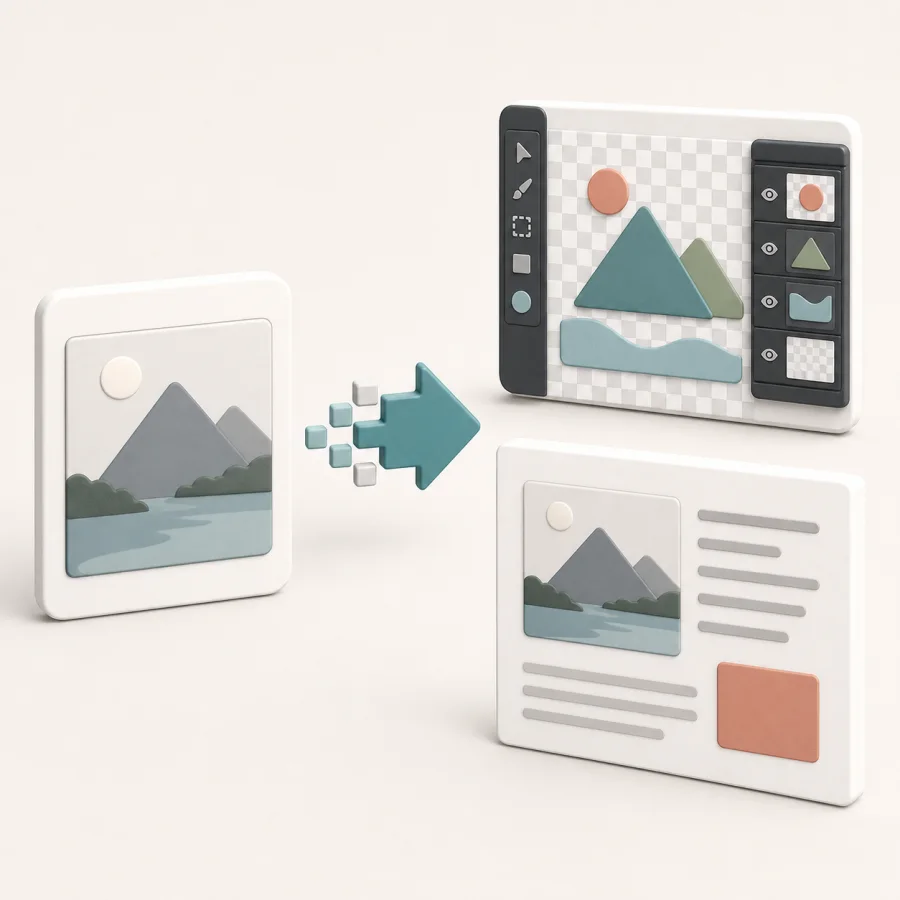
When a design or editing workflow expects PNG, convert the WebP first and then import the measured result. Transparent logos, icons, cutouts, and UI assets are common cases.
A PNG copy can be useful when a document, content system, or sharing workflow asks for PNG. Check the output size before uploading it to the next service.
If the goal is smaller web delivery and transparency is not needed, keep WebP or evaluate JPG for a photo. PNG is the compatibility and lossless-output choice, not a size-reduction step.
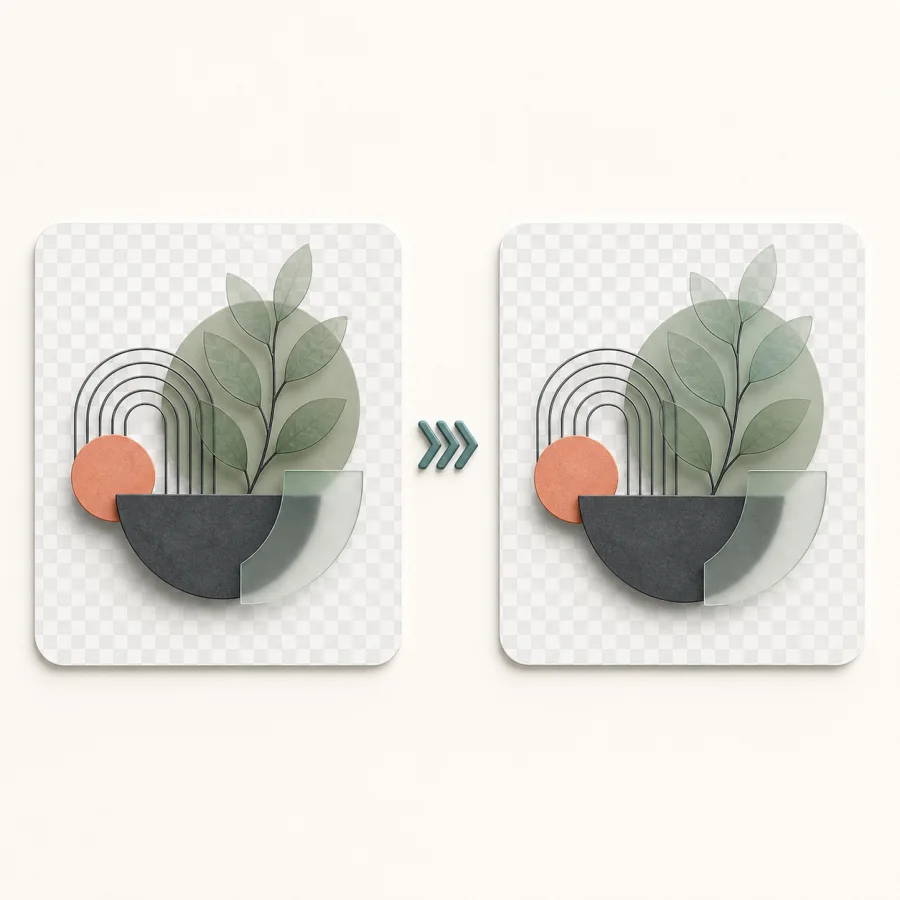
PNG can carry alpha transparency and does not add another lossy encoding step. The result still reflects what was already present in the source WebP.
Transparent and semi-transparent pixels decoded from the WebP can be written to PNG. Inspect soft edges and shadows in the result preview before downloading.
PNG is a lossless output encoding, but it cannot restore texture or detail already discarded when a lossy WebP was created.
The format-only conversion keeps the source width and height. The result panel shows the actual dimensions so you can verify that no resize happened.
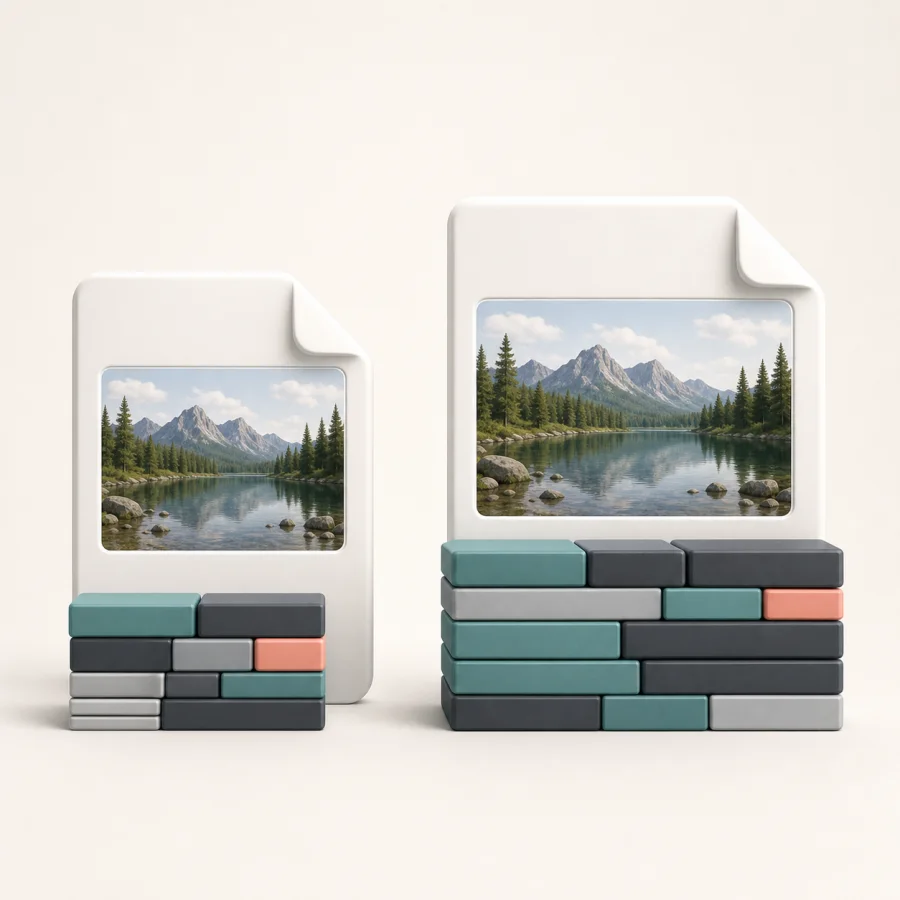
A larger PNG is often a normal result of changing compression models. Use the measured original and output bytes to decide whether PNG is still the right delivery format.
PNG preserves a lossless pixel representation, while WebP can use highly efficient lossy or lossless compression. The same image content can therefore occupy different amounts of storage.
Compare the source and PNG byte counts shown by the tool. A real measurement is more useful than assuming a fixed percentage increase or decrease.
If the destination requires PNG, convert first and then compress the PNG if needed. If the destination only needs a small photo, reconsider whether PNG is the correct target.
The converter is a focused one-file browser workflow. These boundaries matter when the source is animated, unusually large, or dependent on embedded metadata.
The current workflow exports the frame decoded by the browser. It does not create an animated PNG or export every frame from an animated WebP.
Canvas creates a new PNG pixel output. EXIF, ICC, XMP, and other source metadata should not be assumed to carry over.
This page handles one WebP per conversion and rejects widths or heights over 12,000 pixels. Very large images can still be limited by available browser memory.
Continue with the image after the format conversion.
Resize the PNG
Resize JPG, PNG, and WebP images by exact pixels or percentage. Keep the aspect ratio, choose the output format, compare dimensions and file size, and download the locally processed result without logging in.
Compress the PNG output
Reduce JPG, PNG, or WebP file size by quality or target KB. Compare the original and compressed result, then download the smaller file locally with no login or upload.
Convert PNG to JPG
Convert PNG images to JPG in your browser, choose the JPG quality and background for transparent pixels, compare the result, and download it without signing in.
Convert JPG to PNG
Convert JPG or JPEG images to PNG while keeping the original dimensions. Compare the output details and download the locally processed file with no login required.
Straight answers about transparency, quality, file size, animation, metadata, privacy, and limits.
Convert when the next editor, document, CMS, sharing workflow, or transparent-asset workflow needs PNG. If your only goal is a smaller web file, keeping WebP or using JPG for a non-transparent photo may be a better choice.
PNG supports an alpha channel, so transparent and semi-transparent pixels from the WebP decoded by your browser can be written to the PNG. Check the output preview around soft edges before downloading.
PNG encoding does not add a new lossy compression step. However, if the source WebP was already encoded with lossy compression, converting it to PNG cannot recover detail that was already discarded.
WebP and PNG use different compression approaches. PNG stores a lossless pixel representation and can be larger, so compare the original and output bytes shown by the tool instead of expecting a fixed file-size change.
Yes. This format conversion keeps the source width and height. The result area shows the actual output dimensions, and images with either dimension over 12,000 pixels are rejected.
No. This browser workflow exports the frame decoded by the browser and does not create an animated PNG or export every WebP frame. Use a dedicated animation converter when all frames matter.
The tool creates a new PNG through a browser canvas, so source WebP metadata such as EXIF, ICC, or XMP is not guaranteed to be copied. Do not use this conversion as a metadata-preservation or security-sanitization workflow.
Yes. Choose, drop, or paste one WebP and the conversion runs in this browser without an account. Browser memory and the 12,000-pixel dimension guard still limit unusually large files.
No. Renaming changes the filename extension but not the file's internal encoding. A real conversion must decode the WebP pixels and write a valid PNG file.