Choose the Solid Background
White is the default for a neutral result, but a custom color can better match an email, web layout, or product presentation.

AI tools & browser utilities · No login
Convert PNG images to JPG in your browser, choose the JPG quality and background for transparent pixels, compare the result, and download it without signing in.
One PNG at a time · processed locally
Drop a PNG here or copy one to your clipboard and paste it on this page.
Higher values keep more detail. The final file size depends on the image content and dimensions.
JPG cannot keep transparency. Transparent and semi-transparent pixels will be flattened onto this color.
Processed in this browser · no login
Convert, inspect, and download without losing track of what changed between the source and the JPG.
Choose, drop, or paste one PNG. The source preview shows its actual name, dimensions, format, and file size.
Pick a practical quality preset or adjust the slider, then choose the solid color that replaces transparent pixels.
Review the flattened preview and the measured output details before downloading or trying another setting.
JPG output needs a solid background. Choose it before converting and inspect the flattened edges so the result fits its destination.
White is the default for a neutral result, but a custom color can better match an email, web layout, or product presentation.
Semi-transparent and antialiased pixels blend with the selected color. Check the result preview for halos or an unexpected edge tint.
If the asset must overlay another background, keep its transparent PNG. JPG cannot restore that transparency after conversion.
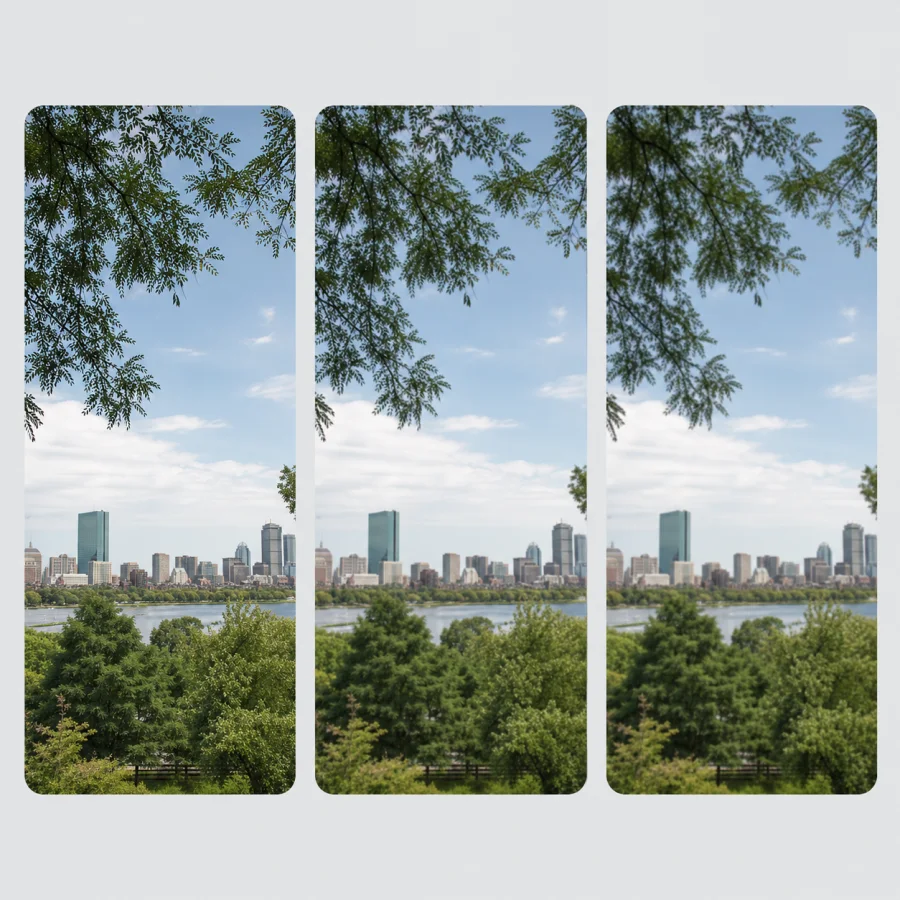
Quality changes the JPEG encoding tradeoff. Use a preset as a starting point, then trust the actual preview and output bytes for the final decision.
Start high when texture and fine detail matter. The output may be larger, so inspect the measured result instead of assuming a fixed file-size reduction.
A balanced setting is a practical starting point for email and web images. Compare the result and move up or down when the detail-to-size balance is not right.
PNG and JPG compress different image content in different ways. A converted JPG can be larger, so use the original and output measurements shown by the tool.
The best format depends on the image and the destination. Use the conversion when it solves a real compatibility or file-size need.
Photographic images that do not need transparency are common JPG candidates. Check the output size and details before replacing the source.
Logos, interface screenshots, crisp text, and transparent assets can show softer edges or lose transparency as JPG.
Compare the same dimensions, visible detail, background, and bytes. If the result is not better for the task, keep the original PNG.
The workflow is local and account-free, with clear limits. Knowing what the browser does and does not preserve helps you choose the right file workflow.
The selected image is decoded, composited, and exported in this browser. The tool does not send the source file to a conversion server.
Canvas creates a new pixel output, so the source PNG file metadata is not copied. This should not be treated as a security-grade metadata sanitization guarantee.
This page handles one PNG per conversion and rejects widths or heights over 12,000 pixels. Very large images can still be limited by available browser memory.
Keep working with the image after the format conversion.
Compress the JPG
Reduce JPG, PNG, or WebP file size by quality or target KB. Compare the original and compressed result, then download the smaller file locally with no login or upload.
Resize image dimensions
Resize JPG, PNG, and WebP images by exact pixels or percentage. Keep the aspect ratio, choose the output format, compare dimensions and file size, and download the locally processed result without logging in.
Convert WebP to PNG
Convert WebP to PNG when you need transparency or wider editing compatibility. Preserve the image dimensions, compare the output, and download the PNG without uploading or signing in.
Convert JPG to PNG
Convert JPG or JPEG images to PNG while keeping the original dimensions. Compare the output details and download the locally processed file with no login required.
Straight answers about transparency, quality, dimensions, privacy, and the output file.
Choose, drop, or paste one PNG into the tool, select a JPG quality and background, then convert and download it. The conversion runs in your current browser and the tool does not upload the selected image.
JPG output cannot keep transparency, so transparent pixels are filled with the background color you select. White is the default, and you can preview the flattened result before downloading.
JPG uses lossy encoding. The quality setting controls the encoding tradeoff, so inspect the result preview and output size before downloading rather than expecting a lossless copy.
Yes. This converter changes the file format and keeps the source width and height. The result panel shows the actual output dimensions.
Output size depends on the image content, dimensions, source PNG optimization, and JPG quality. Conversion does not guarantee a smaller file, so compare the measured original and output bytes.
The converter creates a new JPG from a browser canvas, so the source PNG file metadata is not copied into the new output. This is not a guarantee of forensic or security-grade metadata removal.
JPG is often a practical choice for photographic images that do not need transparency. Keep PNG for transparent assets, logos, text-heavy graphics, and sharp edges when those details matter.